

Close Menu
  • News
  • Features
  • Guides
  • Interviews
  • Reviews
  • Previews
  • About Us
  • Metacritic
  • OpenCritic
  • CriticDB
X (Twitter) YouTube RSS Bluesky Discord

Follow Us

Facebook X (Twitter) YouTube Bluesky
The OuterhavenThe Outerhaven
  • Latest
  • Features
  • Guides
  • Hubs
    • Summer Game Fest 2025
    • CES 2026
  • Previews
  • Reviews
    • Video Game Reviews
    • Anime & Animation Reviews
    • Comic Book & Manga Reviews
    • Films & TV Reviews
    • Hardware Reviews
    • Tabletop & Card Game Reviews
    • Toy Reviews
  • Gaming
    • PlayStation
    • Nintendo
    • Xbox
    • PC Gaming
    • Tabletop & Card Game
    • Hardware News
    • Virtual Reality
  • Entertainment
    • Anime & Animation
    • Comic Books & Manga
    • Films & TV
    • Original English Light Novels DB
    • OELN DB
    • Pop Culture
    • Books
    • Toys
  • Podcasts
    • A-01 Podcast
    • Nintendo Entertainment Podcast
    • Spectator Mode Podcast
The OuterhavenThe Outerhaven
Home»News»Guides»Disney Dreamlight Valley: How To Save Items From Others Boutiques

Disney Dreamlight Valley: How To Save Items From Others Boutiques

By Faith LaneMay 27, 2024

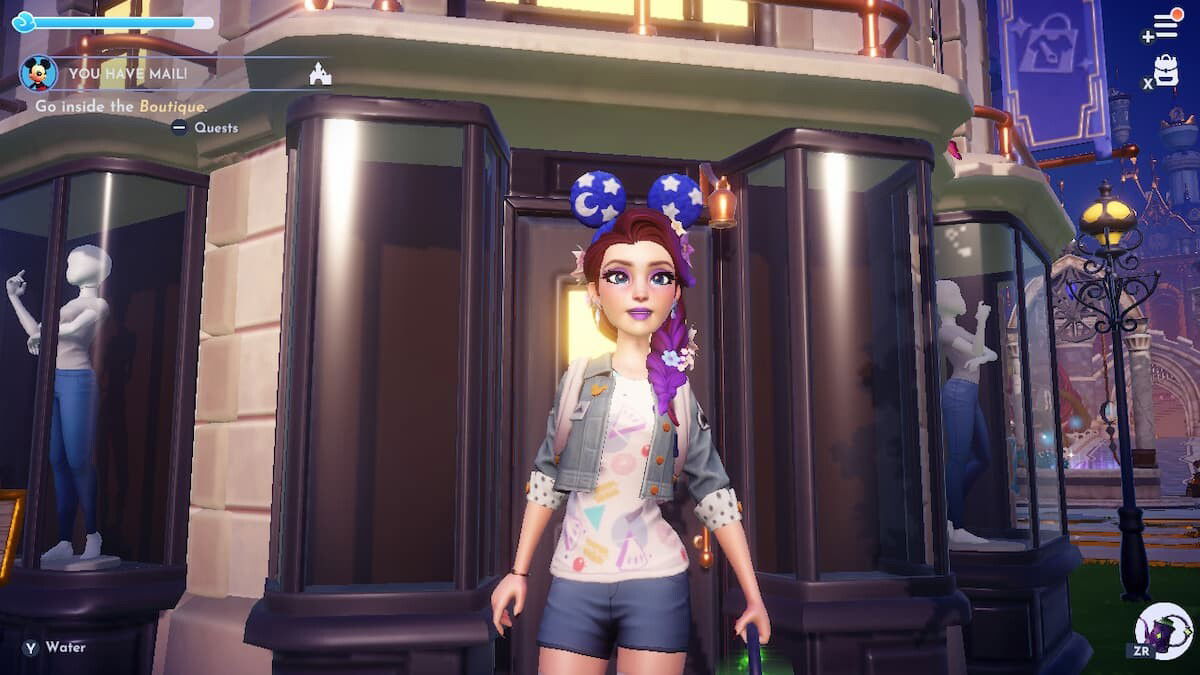
Disney Dreamlight Valley has welcomed Daisy Duck as one of its recent new valley villagers that players can bring to their valleys. However, Daisy doesn’t just bring her fun personality and adorable house with her; she also brings a brand-new shop that players can explore. Daisy’s Boutique is a new source of multiplayer that allows players to get designs from their friends or even strangers to use on their avatar or in their valley simply by visiting their boutique.

How To Save Items From Other Boutiques in DDLV
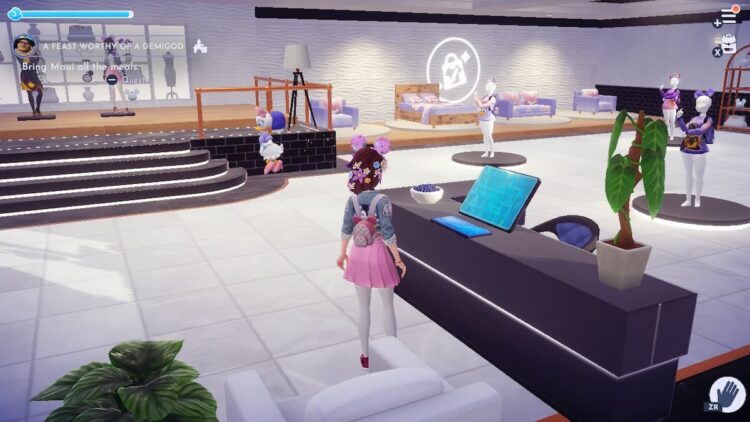
After players have completed the quest that are required to unlock Daisy’s boutique, they will then be able to display their designs in the shop. The main floor area – where the gray circles are – is where players can be able to connect to the boutique and save the designs of others. Once a player has visited another player’s boutique, they will be able to access their designs at any given time.

The way it all works is from the computer. Daisy’s boutique has a little blue screened computer that players are able to access from the counter of the store, from there when players click on it they will be able to access a list of all the different players’ boutiques they have visited overtime and click on their desired one they would like to look at in Disney Dreamlight Valley.

When players have clothing items they would like to save up in their boutique, they can walk over to them and click on them and select whichever items they would like to save. They will then be added to the catelog of magic designs for the player to then apply to their avatar. Do note, that the boutique will deplay whatever is live in that person’s store, so be sure to save whatever designs that are wanted before they are removed if the player choices to add something else. That is how to save designs from other player’s boutiques.

Disney Dreamlight Valley
Avatar photo
Faith Lane
  • Website
  • X (Twitter)
  • Instagram

Faith Lane is a self-published Christian author, journalist, editor, ghostwriter, and fangirl. She loves all things fandom and video games and loves to share her passion with her readers through her writing.

Latest Articles

The Release Date for Replaced Has Been Replaced To April 2026

February 18, 2026

Virtua Fighter 5 R.E.V.O. World Stage Switch 2 Beta Test Begins This Week

February 18, 2026

ONE PIECE Returns to Crunchyroll on April 5

February 17, 2026

WEBTOON Champions Creators and the Future of Comics at Emerald City Comic Con 2026

February 17, 2026

Boruto Receives 24/7 Channel for FREE on Pluto TV

February 17, 2026

First RPG Maker Awards Announces Winners

February 17, 2026
About Us • Our Team • Contact Us • Privacy Policy • Review Policy
Ethics Policy • Terms of Service • Fact Checking & Corrections Policy • Editorial Policy

Find our reviews on Metacritic • OpenCritic • CriticDB
Copyright @2026 The Outerhaven Productions

Type above and press Enter to search. Press Esc to cancel.